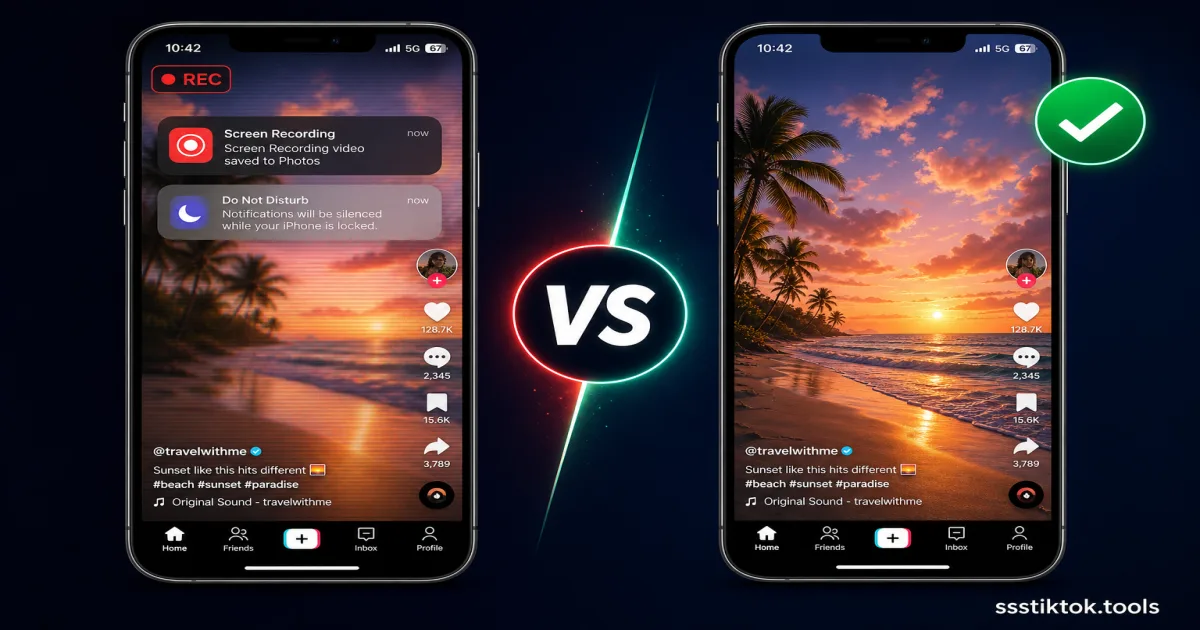
You have found the perfect TikTok clip and you want to keep it. The obvious move is to hit screen record, right? Almost everyone tries this first, and almost everyone ends up disappointed with a blurry, cropped video full of pop-up notifications and a status bar stuck across the top. There is a much cleaner way to do this, and it takes about the same amount of effort.
This guide compares screen recording against using a proper downloader like ssstiktok.tools, breaks down exactly where screen recording falls short, and shows you the fastest way to get a clean HD copy of any public TikTok video.
Why People Screen Record TikTok Videos
The Appeal of Screen Recording
Screen recording feels intuitive. Every modern phone has a built-in recorder baked into the control centre or quick settings panel, so there is nothing to install and nothing to copy or paste. You just tap record, play the video, and stop. For a lot of people that "no extra app" simplicity is the whole appeal, especially if they only need to save a video occasionally.
It also feels like it "just works" for anything on screen — a TikTok Live moment, a Duet, a video with restricted sharing, or a Story that disappears after 24 hours. Screen recording captures whatever is visible, regardless of the platform's own download settings.
The Hidden Problems
Here is where it falls apart. Screen recording captures your entire display, not just the video, so you inherit every visual artefact of your phone along with it:
- Frame rate cap: Most phones record the screen at 30fps regardless of the original video's frame rate, so smooth 60fps TikTok content gets choppier.
- Status bar and UI overlay: The clock, signal bars, battery icon, and the TikTok interface itself (like/comment/share icons, captions, progress bar) get baked permanently into your file.
- Notification interruptions: A text message or app alert popping up mid-recording appears directly in your saved video, and there is no undo.
- Compression on top of compression: TikTok already compresses its videos before you see them. Screen recording then re-encodes that already-compressed footage, degrading quality a second time.
- Battery and storage drain: Screen recording is one of the most resource-intensive tasks a phone can run, and the resulting files are often 3-5x larger than a properly downloaded MP4 of the same clip.
- No audio control: You cannot separate or extract clean audio afterwards, since it is baked into the recording along with system sounds if you are not careful with mic permissions.
Screen Record vs Downloader: Side-by-Side Comparison
Video Quality Comparison
A downloaded TikTok video pulls the original file directly from TikTok's servers, the exact same bitrate and resolution the creator uploaded, typically 720p or 1080p at the video's native frame rate. A screen recording, by contrast, re-captures whatever your screen renders at your device's recording settings, which caps out lower on most phones and re-compresses everything through your device's video encoder. Side by side, the difference in sharpness and colour accuracy is obvious within the first few seconds, especially on fast-motion clips or dance videos.
File Size and Storage
Because screen recordings capture full-screen video at a fixed bitrate for the entire duration (including the UI), a 30-second TikTok clip recorded this way can easily hit 40-80MB. The same clip downloaded directly is usually 3-8MB. If you are saving more than a handful of videos, that difference adds up fast and eats into your phone's storage.
Speed and Convenience
Screen recording requires you to sit through the entire video in real time, a 3-minute video takes 3 minutes to capture, plus editing afterwards to crop out the UI and trim dead air at the start and end. A downloader processes the video in a few seconds regardless of its length, and hands you a clean file with nothing to crop.
How to Download TikTok the Right Way (ssstiktok.tools)
If the video is public, you never need to screen record it. Here is the proper method:
Step 1: Copy the Link
Open the TikTok video, tap the Share icon, and select "Copy Link." This grabs the direct URL to that specific video.
Step 2: Paste and Process
Go to ssstiktok.tools and paste the link into the input box. The tool fetches the original file directly from TikTok's servers in a couple of seconds.
Step 3: Download Clean HD File
Choose your preferred format, HD video without watermark, or MP3 if you only want the audio, and tap download. The file lands directly in your gallery or downloads folder, ready to use, with no status bar, no notifications, and no re-compression.
When Screen Recording Still Makes Sense
There is one legitimate use case screen recording still wins at: capturing a TikTok Live stream in the moment, since live broadcasts do not exist as a downloadable file afterwards unless the creator saves a replay. Screen recording is also the only option if you specifically need to capture your own interaction with the app (for a tutorial, for example) rather than just the video content itself.
Device-wise, iOS records at a slightly higher fixed bitrate than most Android phones by default, but both platforms cap the frame rate well below what TikTok itself can output. Android also tends to add its own recording indicator overlay, which is one more visual element you will need to crop out afterwards.
Frequently Asked Questions
Does screen recording notify the creator?
No. TikTok does not send a notification to the creator when someone screen records their video, unlike Instagram's screenshot alerts on certain content types. That said, redistributing someone's content without credit is still bad etiquette even if it is not flagged.
Is screen record quality actually worse?
Yes, consistently. You are re-encoding an already-compressed video through your device's screen capture encoder, which typically caps frame rate at 30fps and applies its own bitrate limits. A direct download preserves the original file TikTok's servers actually store.
Can I screen record private videos?
Technically yes, if you can already view the video (e.g. as an approved follower), but this sits in a legal grey area since you are bypassing the creator's decision not to make the content downloadable. A proper downloader like ssstiktok.tools only works on public videos for this exact reason.
Skip the screen recording hassle entirely, grab any public TikTok video in original HD quality in seconds.
Download with ssstiktok.tools