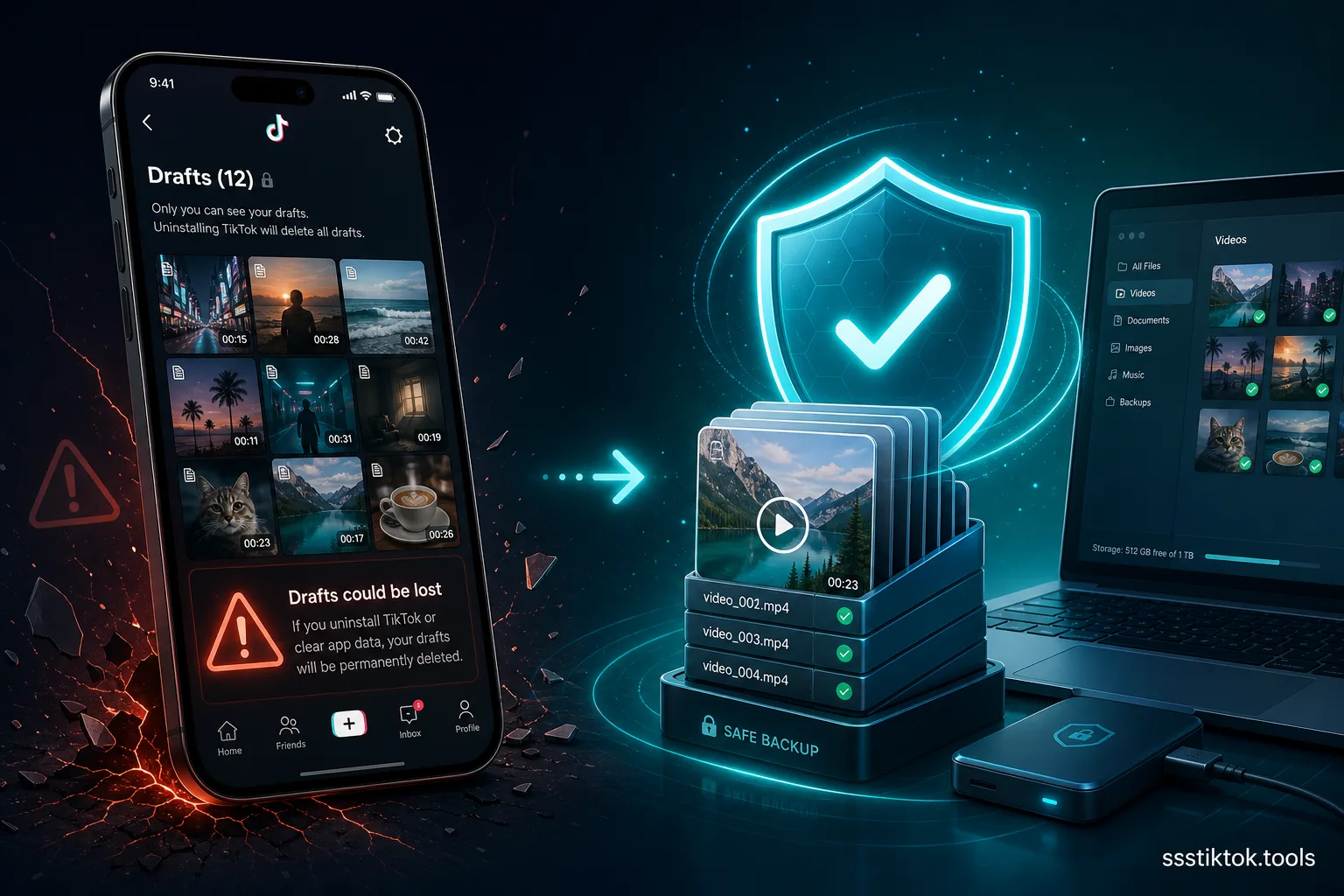
You open TikTok, tap into your drafts, and the videos you spent an hour editing are just... gone. No heads-up, no error, just an empty folder where a dozen half-finished clips used to be. If that's happened to you, you're definitely not the only one, and it's not a glitch. TikTok drafts get stored locally on your phone, not in the cloud, so the second you uninstall the app, get a new phone, or wipe your storage, every draft you hadn't posted yet goes with it.
This trips people up constantly because we're trained to expect apps like WhatsApp or Google Photos to sync everything automatically in the background. TikTok just doesn't do that for drafts. The good news: there are real ways to back up your work before disaster hits, and this guide covers all of them — including how to use ssstiktok.tools to pull a finished draft off TikTok's servers once you've posted it privately.
Why TikTok Drafts Are at Risk
Drafts are stored on your device, not the cloud
When you record or upload a clip in TikTok and hit "Save draft" instead of posting it, that file gets written straight to your phone's local storage — tucked inside the app's own private sandbox, nowhere TikTok's servers can see or restore. A published video lives permanently on TikTok's CDN and syncs to your account no matter which device you're logged into. A draft doesn't. It exists in exactly one spot: the physical phone you made it on. There's no drafts tab in your account settings, no sync switch, no cloud backup baked in anywhere.
When you lose them: reinstall, new phone, crash
Three things will wipe your drafts, guaranteed. First: uninstalling TikTok — even for two minutes, even if you download it right back — clears local app storage on most phones, and every draft goes with it. Second: switching to a new phone. There's no "restore drafts from old device" prompt during setup, so whatever's sitting in your drafts folder on the old phone just doesn't exist on the new one. Third, and honestly the one that stings the most: an app crash, or clearing app data/cache manually through your phone's storage settings. Android's "Clear storage" button especially will nuke drafts instantly, and a ton of people hit that button trying to free up space without realizing what it's about to cost them.
Method 1: Publish Privately and Download
The most reliable way to turn an at-risk draft into a permanent backup is to actually post it, but lock down who can see it, then grab the file properly afterward.
Step 1: Set video to "Only Me" and post
Open the draft and, instead of letting it sit there, run it through the normal posting flow. Before you tap "Post," find the privacy setting (usually says "Who can watch this video") and switch it from "Everyone" to "Only me." That uploads the video to TikTok's servers exactly the way a public post would, except literally nobody can see it, search for it, or interact with it. Now it's stored on TikTok's CDN instead of stuck as a local draft — that's the whole win right there.
Step 2: Copy the video link
After posting, head to your profile, find the private video (it'll usually show a little lock icon), tap in, hit the share icon, and pick "Copy link." That grabs the direct URL for your now-cloud-hosted video.
Step 3: Download with ssstiktok.tools (no watermark)
Drop that link into ssstiktok.tools, hit download, and save the clean MP4 straight to your phone or laptop — zero TikTok watermark, zero logo, no quality loss from re-encoding. Now the finished video exists in three spots at once: as a private post on TikTok's servers (grab-able anytime from any device you log into), and as a local file wherever you just downloaded it. Lose your phone entirely tomorrow? That private post is still sitting on your account, untouched.
Method 2: TikTok's Data Export Tool
How to request your data
TikTok has a built-in export feature buried under Settings → Account → Download your data. You can request a complete export of your account activity, and it usually takes a few hours to a couple of days to generate before you get a download link sent to you.
What's included (and what isn't)
The export covers stuff like your posted videos, comments, likes, follower list, and DMs — but here's the catch: it generally does not include unpublished drafts sitting in local storage. TikTok's export only pulls from what's already sitting on their servers, and a local-only draft was never uploaded there to begin with. That makes the data export mostly a backup tool for stuff you already posted, not a rescue plan for drafts still stuck on your device. If you actually care about a draft, Method 1 (post it privately, then download) is way more reliable because it gets the file onto TikTok's servers in the first place.
FAQ
Why did my TikTok drafts disappear?
Nine times out of ten it's because you uninstalled and reinstalled the app, switched to a new phone, or cleared the app's storage/cache through your phone settings. All three wipe local app data, and drafts only ever live in local app data — TikTok's servers never had a copy to hand back to you.
Can I transfer drafts to a new phone?
Not through TikTok directly — there's no built-in transfer or sync option for drafts across devices. Your move is to open each draft that matters on your current phone, publish it privately with "Only me," and it'll then be accessible from your account on the new phone too, since it's living on TikTok's servers now instead of local storage.
How do I export TikTok drafts?
You technically can't export a draft directly since TikTok has zero export function for unpublished local content. The workaround: post the draft privately as "Only me" first, then use ssstiktok.tools to grab the resulting video link as a clean MP4, which you can then dump anywhere — cloud storage, an external drive, or just your camera roll.
Will going private hurt my views or engagement later?
Nope. Whenever you're ready to make it public for real, just flip the privacy setting from "Only me" back to "Everyone" (or "Friends") in the video's settings. Changing visibility doesn't reset the post, delete anything, or touch anything else about it — it's purely a permissions toggle, nothing more.
Does downloading through ssstiktok.tools mess with video quality?
No. The tool pulls the exact file TikTok is already serving rather than re-recording or re-encoding anything, so what you download matches the quality you originally uploaded — just without TikTok's watermark slapped over it.
Don't risk losing another edit — back up your TikTok drafts the smart way.
Download with ssstiktok.tools →